TEACHING RESOURCE
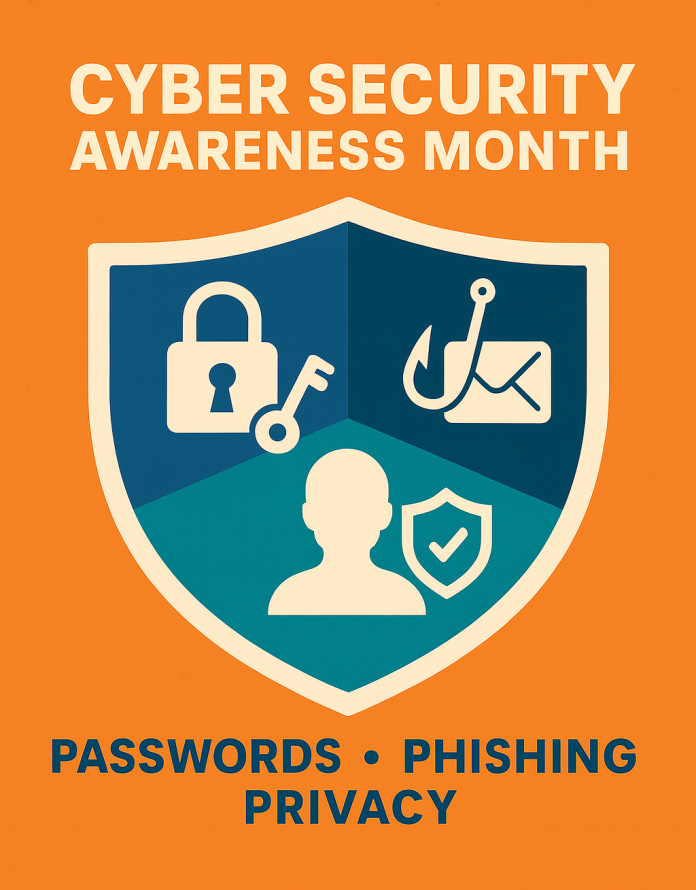
Cyber Security Awareness Month: Passwords, Phishing & Privacy
Published: 13 Oct 2025
View Lesson PlanDescription:
This unit of work supports schools in marking Australia’s Cyber Security Awareness Month (October) by building a “cyber safe culture.” Students will engage in highly practical, scenario-based learning that develops their understanding of password security, phishing scams, and online privacy. Lessons integrate Digital Technologies (systems, safety, and ethical use) and PDHPE (personal wellbeing, relationships, protective behaviours). The program includes explicit instruction, hands-on simulations, roleplay, and reflection activities. Teachers can also integrate the eSafety Commissioner’s classroom resources to strengthen alignment with national initiatives.
Curriculum Links (Australian Curriculum v9)
- Digital Technologies (Years 5–10):
- Analyse how people interact with digital systems, considering safety, ethics, and impacts.
- Implement strategies to protect data, including passwords and privacy.
- Health & Physical Education (Years 5–10):
- Investigate protective behaviours and help-seeking strategies in unsafe situations.
- Explore the influence of media and technology on health, safety, and wellbeing.
Lesson Sequence:
🧩 Lesson 1: Strong Passwords, Strong Protection
Time: 60 minutes
Focus: Understanding why passwords matter and how to create strong ones
Learning Intention
Students will understand how passwords protect information and learn strategies for creating and managing strong, secure passwords.
Success Criteria
- I can explain why passwords are important.
- I can identify characteristics of a strong password.
- I can demonstrate how to strengthen weak passwords.
Lesson Breakdown
1. Warm-Up (10 min) — “Would You Share It?”
Teacher script:
“Think about your toothbrush — would you share it with anyone? Probably not! A password is like a digital toothbrush — it keeps your stuff clean and safe. Today we’re going to explore how strong passwords protect us from people who might try to get into our personal accounts.”
- Ask: “What could happen if someone guessed your password?”
- Record student answers on the board. (Expected: loss of account, identity theft, embarrassment, loss of work.)
2. Demonstration (15 min) — “How Easy Is It to Crack?”
- Show the website password.kaspersky.com.
- Invite students to test “fake” passwords (e.g. 123456, password123, fluffy2009).
Teacher prompt:
“Notice how fast the computer can crack short or simple passwords. Let’s see what happens if we use longer ones or mix in symbols.”
- Show examples of improved passwords or passphrases like
MyDogEats$ocks@2pm!
3. Guided Practice (20 min) — “Password Makeover”
- Give students a “weak password” list (e.g. sports team names, birthdays).
- In pairs, students transform each into a strong version following these rules:
- At least 12 characters
- Combination of upper/lowercase, numbers, and symbols
- Avoid personal info
- Prefer passphrases over random strings
- Share examples aloud.
4. Reflection (10 min)
- Students write in their digital journal or on paper:
“One change I’ll make to my password habits is…” - Optional: Students create a mini-poster “Top 5 Password Safety Tips.”
Assessment Opportunity
- Observation during password improvement activity
- Poster or reflection entry demonstrating understanding of strong password creation
Differentiation
- Support: Provide sentence starters or model examples of safe passphrases.
- Extension: Students explore password manager apps (conceptually, not using real data).
Teacher Management Tips
- Reinforce privacy — no one shares real passwords.
- Keep examples fictional and neutral.
🎣 Lesson 2: Don’t Get Hooked – Understanding Phishing
Time: 60 minutes
Focus: Recognising and responding safely to phishing scams
Learning Intention
Students will identify the warning signs of phishing and practise strategies for avoiding scams.
Success Criteria
- I can spot the clues that show a message might be fake.
- I can explain what to do if I receive a suspicious message.
Lesson Breakdown
1. Hook (10 min) — “The Too-Good-To-Be-True Message”
Display a fake email or message on screen:
“Congratulations! You’ve won a $500 gift card! Click here to claim your prize.”
Teacher script:
“Who’s excited to win $500? Let’s check if this is real or fake. What clues can we find?”
Encourage students to circle suspicious elements: sender address, spelling errors, urgency, links.
2. Group Analysis (20 min) — “Real or Fake?”
- Provide 4–5 printed or digital message examples (mix of genuine and fake).
- Students use the Phishing Clue Checklist:
- Is the sender known and verified?
- Does it ask for personal info?
- Does it create urgency or fear?
- Are there spelling or grammar errors?
- Is the link suspicious?
Teacher script:
“If any of these are a YES — don’t click! Stop, think, and tell someone.”
3. Roleplay (20 min) — “The Hook and the Catch”
- Pairs act out a short skit: one plays the “phisher,” the other the “target.”
- Others watch and identify the trick used (urgency, emotional appeal, reward).
Teacher note: Keep tone light and humorous — aim for awareness, not anxiety.
4. Debrief (10 min)
Group discussion:
“What should you do if you think something is a scam?”
Expected responses: tell an adult, block, delete, report via the platform, or use eSafety’s ‘Report Abuse’ function.
Assessment Opportunity
Students complete a one-question exit ticket:
“One sign of a phishing attempt is…”
Differentiation
- Support: Provide example cues or anchor posters.
- Extension: Students create an “anti-phishing” campaign slogan or meme.
Teacher Management Tips
- Use eSafety.gov.au’s “Fake Text Generator” examples.
- Reinforce critical literacy — “question before you click.”
🔒 Lesson 3: Privacy in a Digital World
Time: 60 minutes
Focus: Personal information and online boundaries
Learning Intention
Students will understand what personal data is, why it matters, and how to manage their digital footprint safely.
Success Criteria
- I can explain what personal information is.
- I can make safe choices about what I share online.
- I can identify how to protect my privacy settings.
Lesson Breakdown
1. Quick Quiz (10 min) — “Would You Post It?”
Display personal info items: birthday, school name, pet’s name, location, friend list.
Teacher prompt:
“Thumbs up if it’s safe to share, thumbs down if not.”
Discuss why certain details (like pet names or schools) can be used to guess passwords or track identities.
2. Case Study (20 min) — “The Overshare”
Read a short fictional scenario:
“Liam posts a photo of his birthday cake with his name, age, and home address visible in the background.”
Ask:
- What could go wrong?
- Who might see this post?
- How could Liam have shared safely?
Record “safe sharing” tips on board.
3. Hands-On Task (20 min) — “Privacy Detective”
- Students review a mock social media profile (teacher-prepared or eSafety resource).
- Identify risky posts, photos, or settings.
- Suggest improvements (e.g., stronger privacy settings, avoiding geotags).
4. Reflection (10 min)
- Students create a “Digital Privacy Charter” — a pledge outlining 5 rules for personal data protection.
Assessment Opportunity
- Completed “Privacy Detective” worksheet and Charter
- Observation of reasoning and discussion contributions
Differentiation
- Support: Use pre-filled example posts for analysis.
- Extension: Students research how companies use cookies or track data.
Teacher Management Tips
- Keep scenarios age-appropriate; use fictional names and posts.
- Encourage respect and empathy — privacy protects everyone.
🛡️ Lesson 4: Building a Cyber Safe Culture
Time: 60 minutes
Focus: Empowering students to promote cyber safety across the school
Learning Intention
Students will apply their learning to create messages that promote cyber safety and positive digital citizenship.
Success Criteria
- I can communicate clear cyber safety messages.
- I can work collaboratively to plan and share a campaign.
Lesson Breakdown
1. Discussion (10 min) — “What Is Culture?”
Teacher script:
“Culture is what people do together. It’s how we behave, the words we use, and the choices we make. A cyber safe culture means everyone looks out for each other online.”
Brainstorm: What does a cyber safe school look like?
2. Planning (15 min) — “Our Campaign Ideas”
Groups choose a theme: Passwords, Phishing, or Privacy.
They brainstorm how to share their message: poster, short video, slideshow, or podcast.
Teacher prompt:
“Think: What’s the main message? Who are you speaking to? How can you make it memorable?”
3. Creation (25 min)
Students create their campaign piece using digital or traditional media.
- Posters: Canva or Google Slides
- Podcasts: use phone recorder or classroom mics
- Videos: short skits or animations
4. Showcase (10 min)
Groups share their campaigns with the class. Peers give feedback using “Glow & Grow” (one thing that worked, one thing to improve).
Assessment Opportunity
Campaign artefact + reflection paragraph:
“How will I help build a cyber safe culture in my school?”
Teacher Tips & Management Strategies
- Use real, age-appropriate scenarios to boost engagement.
- Encourage peer teaching—students love exposing fake scams.
- Reinforce protective behaviours by connecting to PDHPE wellbeing content.
- Liaise with your school’s IT team for authentic guest input or demonstrations.
Differentiation
- Support: Provide sentence starters/checklists for identifying phishing signs.
- Extension: Challenge students to design a mock phishing email (safely, in a classroom context) and test if peers can spot it.
- Cross-Curriculum: Link to English (critical literacy of texts), Media Arts (campaign creation), HASS (civics: rights and responsibilities online).